Book Appointment Now
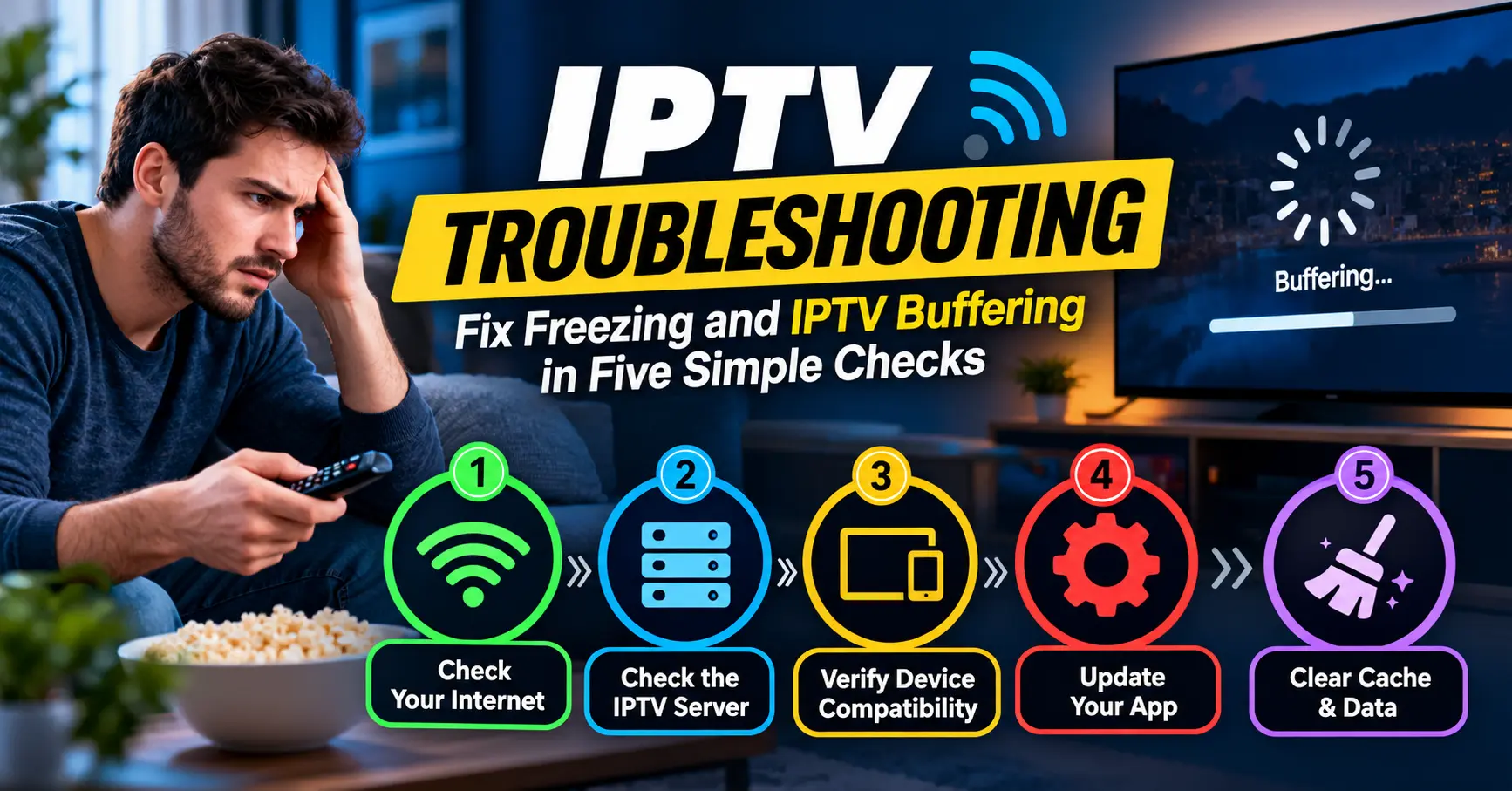
IPTV Troubleshooting Guide: Fix Freezing and IPTV Buffering in Five Simple Checks
It was a Sunday evening, the final was minutes from kickoff, and my cousin’s living room had gone quiet in the worst possible way. The picture froze, the little wheel spun, and eleven grown adults stared at a Firestick as if it had betrayed them personally. I’ve lived that scene more often than I’d like to admit, usually as the person everybody turns to.
That night taught me something simple. Good IPTV troubleshooting isn’t about secret tweaks or clever hacks. It’s about asking the right questions in the right order. This guide gives you that order, whether you’re a viewer with a stubborn stream or an IPTV reseller answering the same complaint for the fifth time today.
I’ll be honest about the limits, too. Some problems live in your living room, some live at your internet provider, and a few live on the supplier’s side of the fence. Knowing which is which saves hours, and sometimes saves a customer relationship.
Five Checks Before You Touch a Setting
Before you reboot anything, work out what sort of problem you actually have. One dead channel is a different animal from every channel stalling at once. Run these five checks in order.
- Switch to a channel in a completely different category. If sport fails but films play, the fault probably sits with that source, not your connection.
- Open YouTube or another streaming app on the same device. If that struggles too, your network or your device is the suspect.
- Try the same stream on a second device, such as a phone on the same Wi-Fi. A different result points straight at the first device.
- Run a speed test with Ookla’s Speedtest while the problem is happening. A result taken at lunchtime tells you very little about 9pm.
- Write down the time, the channel name and any error message on screen.
The last check feels fussy, and it isn’t. A support team can do almost nothing with “it’s not working”, but a timestamp and a channel name give them something to trace.
Do these properly and you’ll settle roughly half of all cases before touching a single setting. That’s been my own experience, anyway, and it’s the whole spirit of IPTV troubleshooting: narrow it down first, fix it second.
IPTV Troubleshooting Starts at Your Router
Most people blame the service first. I blame the router, and I’m right more often than I’m wrong.
Home Wi-Fi is a crowded, noisy place. Ofcom, the UK communications regulator, has published plenty of consumer guidance on improving home broadband, and much of it boils down to two things: where the router sits and what’s interfering with it. A router wedged in a cupboard under the stairs is fighting walls, cables and sometimes a microwave oven. Your stream is the thing that loses.
My most frequent recommendation is the simplest. If your box or TV has an Ethernet port, use it. A £4 cable beats a £200 router upgrade surprisingly often, and in my experience IPTV troubleshooting gets dramatically shorter once the stream is wired.
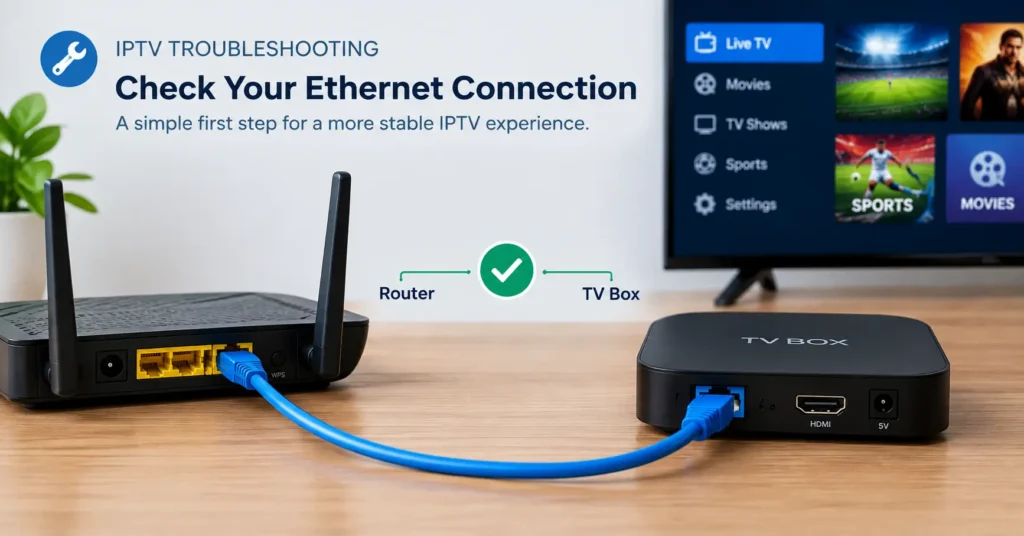
Wi-Fi is still fine for plenty of households. If you must stay wireless, move the router into the open, lift it off the floor and prefer the 5GHz band when the TV is in the same room. The 2.4GHz band reaches further, but it’s shared with half the neighbourhood and every baby monitor on the street.
Powerline adapters sit somewhere in the middle. Some homes get a rock solid link from them, while others with older wiring get nothing but frustration. Treat them as worth a try rather than a guarantee.
Finally, restart the router the proper way. Unplug it, count to thirty, plug it back in and wait for every light to settle. Pressing a button once and hoping rarely clears a stuck connection.
Why IPTV Buffering Isn’t Always Your Internet
Picture a family with a decent fibre connection, a wired box and a brand new router. The football still stalls every Saturday at quarter to eight. They’ve spent money on the wrong problems, and they’re furious. So where’s the fault? That question sits at the heart of IPTV troubleshooting.
Peak Hour Pain
Evenings are busy on every network. When thousands of homes in one area start streaming at once, your provider’s local capacity can get tight, and IPTV buffering is often the first thing you notice. A good test is simple: if the stream is perfect at 10am and rough at 9pm, congestion is a prime suspect.
Netflix’s help centre recommends about 5 Mbps for HD and around 15 Mbps for Ultra HD, which makes a handy yardstick. Live IPTV streams vary, so don’t treat those numbers as gospel. Still, if your speed test shows far less during the problem hours, bandwidth is your culprit. If it shows plenty and the stream still stalls, look elsewhere.
The Server Side
Sometimes the stream itself is the weak link. A server that’s overloaded or a source that’s briefly down will cause freezing no matter how fast your line is. That’s where the earlier checks pay off. If only one channel or one group fails while others play smoothly, tell your supplier exactly which one and when.
VPNs and DNS
VPNs add distance and overhead, and plenty of people leave one running on a phone or router and forget about it. Switch it off for ten minutes as a test. If IPTV buffering vanishes, you’ve found your answer.
Changing your DNS to a public resolver can help in some cases. It won’t fix a congested line, though, and I wouldn’t promise otherwise.
Is that a lot of suspects? Yes. But each one is easy to rule out once you know to look, and that’s the nature of IPTV troubleshooting.
Symptom, Culprit, Fix: A Quick Reference
Here’s the cheat sheet I wish someone had handed me years ago. Keep it nearby for the next time IPTV troubleshooting starts with a vague message and a worried face.
| Symptom | Likely culprit | First fix |
|---|---|---|
| Every channel freezes every few minutes | Weak Wi-Fi or a congested line | Switch to Ethernet, retest off-peak |
| One channel is dead, others fine | Source problem at the supplier | Report the channel name and time |
| Audio out of sync with picture | Player app or an overworked device | Clear cache, try a different player |
| Blank screen after login | Expired line or wrong login details | Check account status and portal details |
| Pixelation on 4K only | Bandwidth or device limits | Drop to an HD version of the channel |
| Fine at 7am, poor at 9pm | Evening congestion | Wire the device, ask your provider |
No table is perfect, and symptoms overlap. Treat the middle column as a starting hunch, not a verdict.
Device Quirks Worth Knowing
Hardware matters more than most people admit. A cheap stick that copes fine with a light app can wheeze under a heavy live stream.
- Amazon Fire TV Stick: Memory and storage are limited, so clearing app caches and removing unused apps often frees it up.
- Android TV boxes: The Nvidia Shield has power to spare and handles demanding streams smoothly, though it costs more than most.
- Smart TVs from Samsung and LG: Built-in apps tend to be slower and less flexible, so an external box is often a worthwhile upgrade.
- Phones and tablets: Brilliant for test viewing, since a different device quickly shows whether the TV is the problem.
Player apps matter as well. Many of them, TiviMate and IPTV Smarters Pro among them, let you adjust playback and buffer settings, and a different player can behave quite differently on the same stream. Try a second app before blaming the line. It takes five minutes, and it’s often the quickest win in IPTV troubleshooting.
What an IPTV Reseller Should Check on the Panel
If you sell subscriptions, you’re the first person a frustrated customer calls. Before you blame their Wi-Fi, spend two minutes inside your iptv panel. Plenty of tickets end right there.
Start with the basics. Is the line active, and has it expired? A surprising number of “it stopped working” complaints turn out to be an expiry date nobody noticed.
Connection limits come next. If a customer’s brother is watching on another device with the same login, the line can drop on both. Your iptv panel usually shows how many connections are allowed and how many are in use.
Output format and player settings deserve a glance too. Some players handle certain formats better than others, so confirm the customer’s details match the app they’re actually using.
Server status is the last stop. If three customers report the same channel at the same moment, it isn’t their router. IPTV troubleshooting from the reseller’s chair is mostly this: rule out the account, then the network, then the stream.
Panels differ, and that’s worth saying plainly. Some give you rich logs and clear status pages, while others give you almost nothing, and that gap shapes how fast you can solve problems. It’s one reason I tell new sellers to test a panel’s tools and support before committing credits. If you’re still comparing suppliers,
Choosing an iptv reseller panel provider without getting burned → / iptv reseller panel provider covers what to ask first.
IPTV Troubleshooting for Resellers: Replies That Keep Customers
A friend of mine ran a small reseller business from a spare bedroom in Leeds. His streams were fine. His replies took two days. He lost a third of his customers in a single winter, and not one of them left over a technical fault.
Speed matters, but specifics matter more. Customers don’t need a lecture on networking. They need to feel somebody has looked at their problem and knows what to do next.
Consider a reply like this one:
“Hi Sam, thanks for flagging this. Could you tell me the channel name, the time it happened and whether it’s one device or all of them? I’ve checked your line and it’s active, so we’ll narrow down the cause from there.”
Notice what it does. It confirms you’ve looked, it asks for the three facts that matter, and it doesn’t blame anyone. That tone is half of IPTV troubleshooting when you’re the one selling the service.
Keep a short set of saved replies for the usual suspects, but personalise the first line. Customers can spot a copy and paste from a mile away.
Tell people up front, too, that IPTV buffering at peak times can be an internet issue rather than a service fault. They’ll trust you more when you’re candid about it. For more on keeping customers happy once the technical side is sorted, see how to reduce churn as an IPTV reseller.
Knowing When to Stop Fixing
There’s a point where more tweaking is just stubbornness. If you’ve wired the device, tried a second app and tested on another network, and the fault still appears at the same hours for several customers, the cause is upstream. At that stage no amount of IPTV troubleshooting at the customer’s end will help.
A sensible supplier will acknowledge the problem and give you a timeline. A poor one goes quiet, and that silence tells you plenty. Keep your notes, because dates and channel names make a much stronger case than “it’s been bad lately”.
If it keeps happening, switching might be the right call. Make sure any new service is properly licensed before you commit, and test it with a small group of customers first. Sometimes the fix isn’t a setting. It’s a different supplier.
One Last Thing Before You Reboot
Next time the picture freezes, resist the urge to unplug everything and glare at the remote. Take a breath, run the five checks and let the evidence point the way.
Which suspect is it this time: the router, the line, the device or the supplier? Honestly, that question is all IPTV troubleshooting ever really is. Go and fix your stream. And if you’re an IPTV reseller, go and answer that customer who’s been waiting since Sunday.
Frequently Asked Questions
What is the first step in IPTV troubleshooting?
Start by working out whether the problem affects one channel or all of them. Then test another app on the same device and the same stream on a second device. Those two tests separate network faults from device faults, and both take under five minutes. Only after that should you start changing settings.
Why does IPTV buffering happen mostly in the evening?
Evening is peak time, when many homes in your area stream at once and your provider’s capacity gets stretched. Wi-Fi interference at home can add to the problem. If the stream is smooth in the morning and rough at night, congestion is a likely cause. A wired connection often helps, though it can’t fix a crowded provider network.
Can a faulty iptv panel setting cause streams to freeze?
It can, though it’s less common than home network trouble. Expired lines, exceeded connection limits and mismatched output settings can all stop or interrupt playback. A reseller can check these quickly inside the iptv panel. If everything there looks right, the cause is probably the network, the device or the source.
Do resellers need a different approach to IPTV troubleshooting?
Slightly, yes. An IPTV reseller has to check the account first, then look for patterns across other customers. If several people report the same fault at the same time, raise it with your supplier straight away. Fast, specific replies matter as much as the fix itself. Calm, structured questions do most of the work.
Is a VPN or DNS change worth trying for freezing?
A VPN can add delay, so test with it switched off first. A public DNS can help in some cases, but it won’t cure a congested connection. A sensible rule of IPTV troubleshooting is one change at a time, with a note of the result. Changing three things at once leaves you guessing.