Book Appointment Now
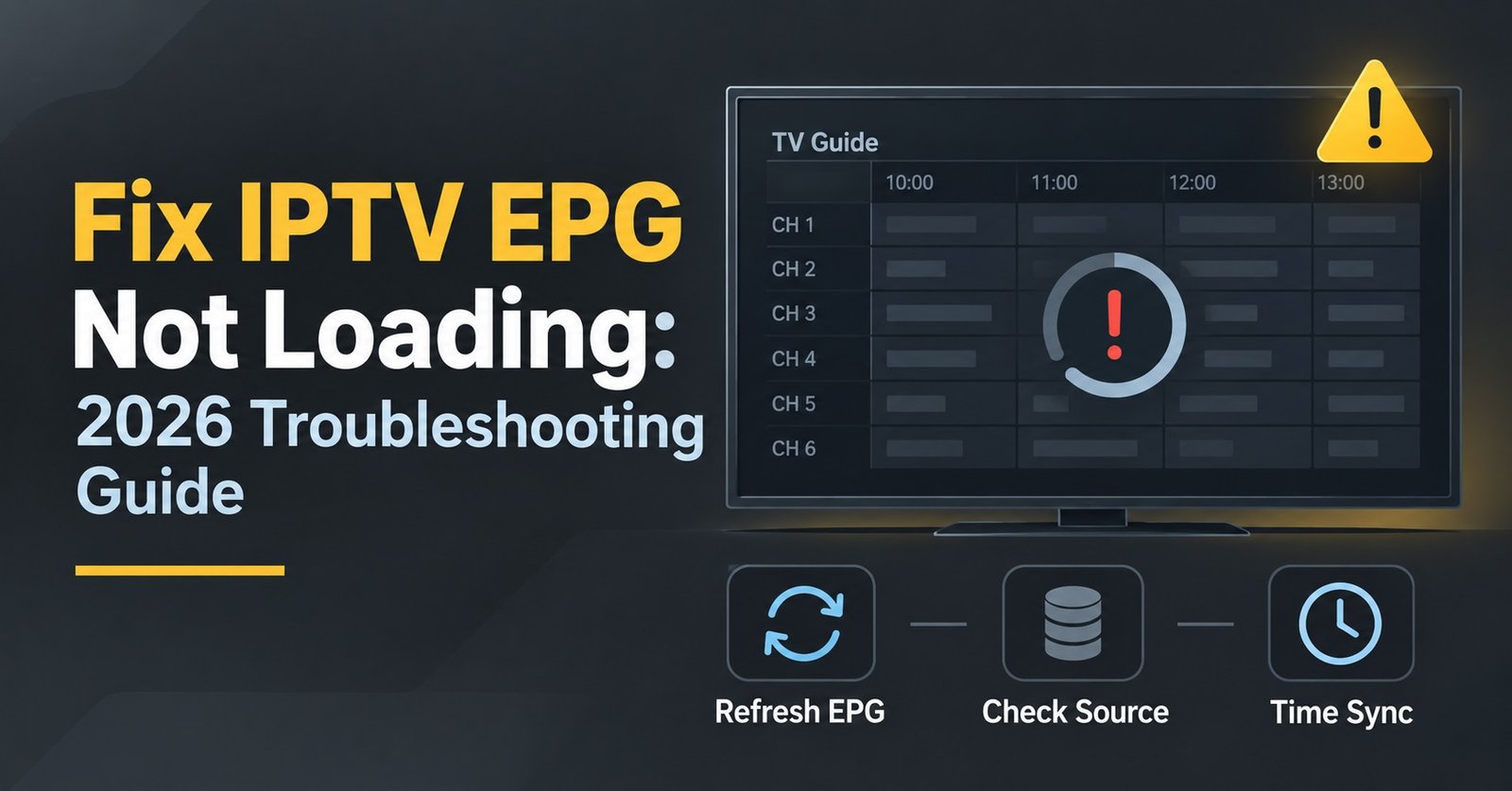
IPTV Not Working? Here’s How To Fix It Fast in 2026
IPTV not working normally comes down to one of four things: your internet connection, the player app, the device you’re using, or something happening on the server side. Working out which one applies to you is most of the battle, because the fix for a slow connection looks nothing like the fix for a corrupted app cache. Before you contact support or start reinstalling anything, it helps to know what each type of failure actually looks like on screen, because the symptoms usually point you in the right direction within a minute or two.
Start With What You’re Actually Seeing
The picture on your screen tells you more than most people realise. A completely black screen with no sound suggests a connection or authentication problem. Constant buffering with the picture freezing every few seconds points to bandwidth, either on your line or on the route the stream is taking. An app that crashes the moment you open it is almost always a software issue rather than a network one. And an error code, particularly anything mentioning a playlist, URL, or authentication failure, usually means the server has rejected your login rather than your connection struggling to reach it.
Separating these symptoms matters because it stops you wasting time. Restarting a router won’t help if the app itself has become corrupted, and reinstalling an app won’t help if your internet IPTV Panel provider is throttling video traffic during peak hours. Match the symptom to the likely cause first, then work through the fix.
Quick Checks Before You Go Any Further
A handful of basic checks resolve a surprising number of cases, and they take less than five minutes combined.
- Confirm your internet is actually working by loading a video site or running a quick speed test on the same device
- Restart the streaming device itself, not just the app, since a full power cycle clears memory issues that a simple app close doesn’t
- Check whether other devices on the same network are also struggling, which tells you whether the problem is device-specific or network-wide
- Look at whether your subscription has actually renewed, since an expired plan often produces the same blank screen as a connection fault
If none of these quick checks change anything, the problem sits a little deeper, and that’s where understanding the four main causes becomes useful.
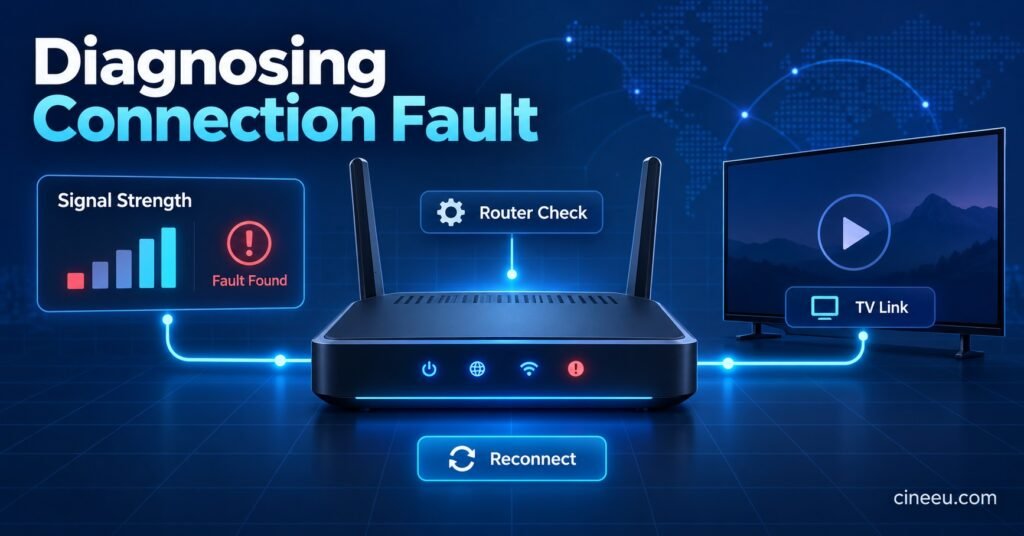
IPTV Not Working: The Four Most Common Causes
Connection and bandwidth problems. IPTV relies on a steady stream of data, not just a fast peak speed. A connection that scores well on a speed test can still struggle with IPTV if it’s inconsistent, shared across several devices, or running over a weak WiFi signal rather than a wired connection. Buffering that gets worse in the evening, when household internet use peaks generally, is a strong sign that bandwidth is the bottleneck rather than the service itself.
Player app issues. The app sitting on your device, whether that’s IPTV Smarters, an M3U player, or something built into a Smart TV’s app store, can develop its own faults over time. Cached data builds up, updates sometimes introduce bugs, and playlists occasionally need refreshing after changes on the server side. This is one of the more fixable causes because clearing the app’s cache or reinstalling it entirely usually resolves it within minutes.
Device compatibility and hardware limits. Older Firestick models, ageing Android boxes, and ageing Smart TVs sometimes struggle to decode newer streaming formats smoothly. What looks like a service fault can actually be a device that’s simply underpowered for the resolution or codec being delivered. Clearing storage space and closing background apps can help temporarily, but a genuinely underpowered device will keep struggling regardless of how clean the network connection is.
Server-side and provider issues. Sometimes the fault genuinely sits outside your control. A server experiencing high load, scheduled maintenance, or a temporary technical fault will produce exactly the same symptoms as a local network problem, which is why checking whether other users are reporting the same issue is worth doing before you spend an hour troubleshooting your own setup.
Pro tip: Switch your device to a wired ethernet connection for a single test session. If buffering disappears completely, WiFi signal strength was the real cause all along.
Matching Problems To Fixes
| Symptom | Likely Cause | What To Try |
|---|---|---|
| Constant buffering, picture freezes | Bandwidth or WiFi signal | Move closer to router, use ethernet, pause other downloads |
| Black screen, no error shown | Authentication or expired plan | Check subscription status, re-enter login details |
| App crashes on open | Corrupted app data | Clear app cache, reinstall the player app |
| Some channels work, others don’t | Server-side channel fault | Wait and retry, contact support if it persists |
| Works on one device, not another | Device compatibility | Check device specs, update firmware, try a different app |
Working Out Whether It’s Your Side Or The Provider’s Side
This distinction saves the most time. If every device on your network shows the same fault at the same moment, the problem is almost certainly upstream, either your internet provider or the streaming server. If only one device is affected while everything else works normally, the fault sits with that specific device or its installed app. A useful middle test is switching to mobile data briefly on a phone running the same service. If the stream works fine there, your home connection is the likely culprit rather than the service itself.
Pro tip: Keep a note of the exact time an issue starts. If it lines up with a known peak viewing period, such as a major evening broadcast, bandwidth congestion becomes far more likely than a genuine fault.
Device Specific Quirks Worth Knowing
Different devices fail in slightly different ways, and the setup process for each one affects how problems show up later.
Firestick devices sometimes suffer from limited internal storage, which causes apps to behave unpredictably once space runs low. If you’re setting one up from scratch or want to check the installation steps again, our guide on how to setup IPTV on Firestick walks through the process in full.
Samsung Smart TVs run on Tizen software, which handles app updates differently to Android-based devices, and an outdated app version is a common source of playback faults. The full walkthrough for getting things installed correctly sits in our guide to setting up IPTV on a Samsung Smart TV.
LG televisions use webOS, and their app store handles IPTV players slightly differently again, which occasionally causes confusion for anyone switching between brands. Our LG Smart TV webOS setup guide covers the specifics for that platform.
How Much Speed You Actually Need
Bandwidth issues are one of the most common causes of playback trouble, and yet many people never check whether their connection actually meets the minimum requirement for the resolution they’re trying to watch. Standard definition needs relatively little, but full HD and especially 4K content demand a steady, consistent connection rather than an occasional fast burst. Our breakdown of the best internet speed for IPTV sets out realistic numbers by resolution, which is worth checking before assuming the fault lies elsewhere.
When The Fault Sits With Your Subscription
Occasionally what looks like a technical fault is really an account issue. Plans that have quietly expired, payments that failed to process, or accounts flagged for sharing beyond the connection limit can all produce the same blank screen or authentication error as a genuine server fault. Checking your account status and current IPTV subscription plan before assuming the worst avoids unnecessary troubleshooting.
For Anyone Managing Multiple Customer Accounts
If you’re running accounts for other people rather than just watching yourself, a single reported fault is worth treating differently to several reports arriving at once. One customer with a playback issue usually points to something local on their end, their device, their connection, or their account status. Several customers reporting the same fault within a short window points to a server-side issue that needs escalating rather than repeating the same troubleshooting steps for each person individually. Keeping a simple log of when issues are reported and what device each customer uses makes that pattern much easier to spot.
Quick Troubleshooting Checklist
- Confirm internet is working on another device or app first
- Restart the streaming device fully, not just the app
- Switch to a wired connection for a test if buffering is the issue
- Clear the app’s cache or reinstall it if it crashes or won’t load
- Check subscription status and login details before assuming a technical fault
- Note the time of day the issue occurs to rule out peak-hour congestion
- Test the same service on a different device to isolate the fault
- Contact support with specifics if the issue persists beyond basic checks
Common Questions
Why does IPTV work fine at some times of day and not others?
This pattern almost always points to bandwidth congestion, either on your own network when several devices are active, or on your internet provider’s line during peak evening hours when overall demand rises.
Can a VPN help if IPTV isn’t working?
Sometimes, if an internet IPTV reseller panel provider is throttling streaming traffic specifically, a VPN can bypass that throttling. It won’t help if the fault is with the app, the device, or the server, so it’s worth ruling those out first.
Should I reinstall the app or just restart it?
A restart clears temporary memory issues, while a reinstall clears corrupted files and cached data that a simple restart won’t touch. Try restarting first, since it’s quicker, and move to a reinstall if the problem returns.
Is it normal for only some channels to stop working?
Yes, this pattern usually points to a fault with that specific channel’s source on the server side rather than a fault with your connection or device, since a genuine network issue tends to affect everything at once.
How do I know if the problem is my device rather than the service?
Test the same account and app on a second device. If it works normally there, the original device is the more likely cause, whether that’s outdated software, limited storage, or ageing hardware struggling with newer formats.
Conclusion
Working out why IPTV isn’t working is mostly a process of elimination rather than guesswork. Start with the quick checks, match what you’re seeing on screen to one of the four common causes, and use a second device to confirm whether the fault is local or coming from further upstream. Most issues resolve within the first few steps, whether that’s a router restart, a cleared app cache, or confirming your subscription is actually active. If you’ve worked through the checklist above and the problem persists, reaching out to support with specific details, including the device, the app, and roughly when the issue started, gets you a faster and more accurate answer than starting from scratch.