Book Appointment Now
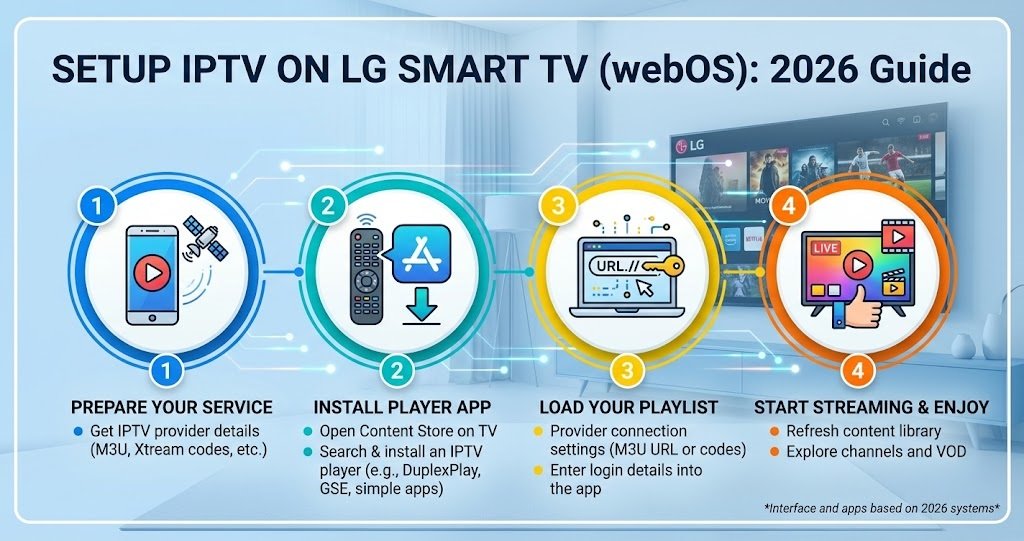
Setup IPTV on LG Smart TV (webOS): 2026 Guide
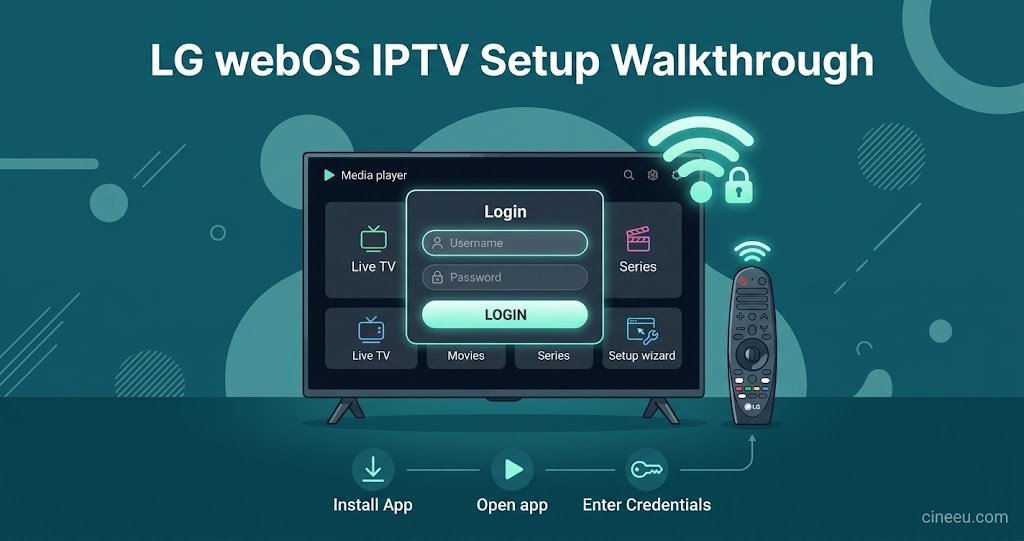
You setup IPTV on LG Smart TV (webOS) by installing a compatible player app, either through the LG Content Store or by sideloading one, and then loading your provider’s playlist or Xtream Codes login inside it. Most webOS models from the last several years handle this without issue, though older sets sometimes struggle with app availability or playback smoothness. The exact steps shift slightly depending on which webOS version your television is running and whether your IPTV reseller panel provider gives you an M3U link or a username and password style login. Once the app is installed and your details are entered, live channels usually load within a minute or two.
What You Need Before You Setup IPTV on LG Smart TV (webOS)
A stable internet connection matters more than almost anything else. LG televisions running webOS stream through Wi-Fi or Ethernet, and while Wi-Fi works fine for most households, a wired connection gives more consistent results if your television sits far from the router or shares the network with several other streaming devices. You’ll also need your login details from your provider, either an M3U playlist URL or an Xtream Codes username, password, and server address. Have these ready before you start, since typing them out on a television remote is tedious enough without stopping to check your email halfway through.
It also helps to know your webOS version. You can find this under Settings, then General, then About This TV. LG has changed its app store policies more than once over the years, and a television running an older webOS build may not have every player app available directly through the store.
Installing an IPTV Player App on webOS
Open the LG Content Store from your home screen and search for an IPTV or media player app. Several dedicated IPTV players are available there, and most accept both M3U playlists and Xtream Codes logins. Download whichever one your provider recommends, since some services are built or tested specifically around one particular app and others work less reliably with it.
If your preferred app isn’t listed in the store, which happens more often on older webOS versions or with newer or smaller apps that haven’t been formally submitted to LG, you have two realistic options. The first is to check whether your provider offers a dedicated device app built for LG televisions specifically. The second is sideloading, which involves enabling Developer Mode through LG’s Developer Mode app (available as a free download on any LG smart TV) and installing an app package manually. Sideloading works, but it’s a more involved process and LG doesn’t officially support every third-party app installed this way, so treat it as a fallback rather than the first thing you try.
Entering Your Playlist or Login Details
Once the app is open, you’ll be asked for either an M3U URL or Xtream Codes credentials. An M3U link is a single web address that points to your full channel list; paste it exactly as your provider sent it, since a missing character at the end is one of the most common reasons a playlist fails to load. Xtream Codes logins ask for a server address, username, and password separately, and these three fields need to match precisely, including the correct port number if one was supplied.
After entering your details, the app should pull your channel list within a few seconds to a minute, depending on how large the list is and how fast your connection responds. If nothing loads after a couple of minutes, don’t keep retrying the same details. Instead, double check for typos, confirm your subscription is active, and make sure the app itself has fully finished loading before you judge it as broken.
| App Type | Login Method | Typical Fit |
|---|---|---|
| Xtream Codes player | Username, password, server URL | Providers using panel-based accounts |
| M3U player | Single playlist URL | Providers issuing a direct playlist link |
| Dedicated provider app | Built-in login screen | Providers with their own LG app |
Pro tip: Save a screenshot or note of your exact login details somewhere other than your inbox. If your TV ever needs a factory reset, you’ll want to re-enter them quickly rather than digging through old messages.
Getting the Picture and Sound Right
Once channels are loading, it’s worth spending a couple of minutes on playback settings rather than assuming the defaults are correct. Inside most IPTV apps there’s a buffer or cache setting, and increasing it slightly, even by a second or two, can smooth out channels that stutter during busy viewing periods like evenings or weekends. If your television supports it, check that the app’s video output matches your television’s native resolution rather than forcing an upscale that adds unnecessary strain.
Sound sometimes lags very slightly behind picture on certain channels. This is usually a stream-side encoding issue rather than something wrong with your television, and it often clears up if you close the channel and reopen it rather than trying to fix it through the TV’s audio settings.
Pro tip: If a specific channel consistently buffers while everything else runs smoothly, the problem is almost always that individual stream rather than your setup. Report it to your IPTV provider instead of adjusting your router.
When the App Won’t Install or Crashes
A handful of issues come up repeatedly with LG webOS IPTV setups, and most have straightforward causes.
If the app won’t download from the Content Store, check your region setting under General Settings, since some apps are restricted to certain LG storefronts. If the app installs but crashes immediately on opening, a soft reset (unplugging the television for thirty seconds) clears more of these than people expect, particularly on sets that have been running for weeks without a restart.
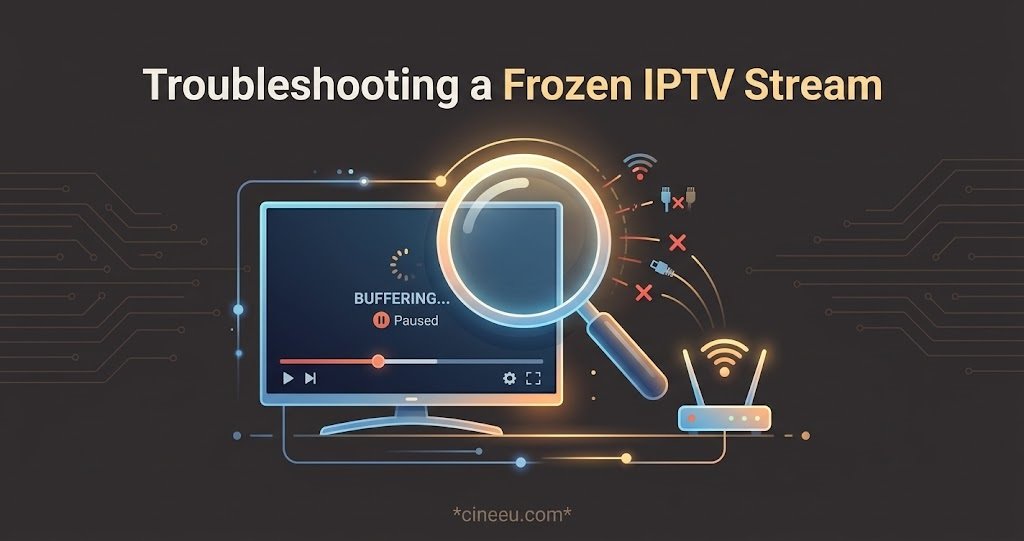
If channels load but freeze after a few seconds, this is usually either a weak Wi-Fi signal or too many devices competing for bandwidth at once. Moving closer to the router temporarily, or pausing other downloads and streams elsewhere in the house, is a quick way to confirm whether that’s the actual cause before assuming the app itself is faulty.
Choosing Between Store Apps and Sideloading Long Term
If you find yourself sideloading because your preferred app isn’t in the LG Content Store, it’s worth checking every so often whether that’s changed. LG periodically updates which apps are officially listed, and a store-installed app is generally easier to keep updated and less likely to break after a firmware update than a sideloaded one. For anyone weighing up which provider or app setup suits their television best, comparing device compatibility across different IPTV services before committing to a longer subscription plan can save some frustration later.
Keeping the Setup Reliable After Firmware Updates
LG pushes webOS firmware updates automatically on most televisions, and while these are usually harmless, they occasionally reset app permissions or, less often, remove a sideloaded app entirely. If your IPTV app stops working straight after your television has updated itself, check the app is still installed before assuming your subscription has lapsed. Re-adding your login details takes a couple of minutes if it has been cleared, and it’s a far more common explanation than an actual service outage.
Frequently Asked Questions
Does every LG Smart TV support IPTV apps?
Most webOS models from recent years support at least one IPTV player through the Content Store. Very old webOS versions may have a smaller selection of available apps and could need sideloading instead.
Can I use the same login on my LG TV and my phone at the same time?
That depends on your IPTV subscription plan and how many connections it allows. Standard single-connection plans usually only support one active stream at a time.
Why does my playlist take a long time to load?
Large channel lists with several thousand entries naturally take longer to load than smaller, curated ones. A slow connection makes this more noticeable.
Is it safe to enable Developer Mode to sideload an app?
Yes, Developer Mode is a standard LG feature intended for exactly this kind of app installation. It doesn’t compromise your television’s normal operation.
What should I do if my TV shows “no signal” inside the app?
This almost always points to a connectivity or server issue rather than a display problem. Check your internet connection first, then confirm your account is active before troubleshooting further.
Getting the details right when you setup IPTV on LG Smart TV (webOS) usually comes down to three things: picking an app your provider actually supports, entering your login details without typos, and knowing which problems are worth troubleshooting versus which ones simply need a restart. Most setups take less than ten minutes once you have your credentials to hand. If you run into a recurring issue that survives a reset and a fresh login, it’s worth checking how the activation process works with your specific provider before assuming your television is at fault.
Setup Checklist
- Confirm your webOS version under Settings, General, About This TV
- Have your M3U link or Xtream Codes details ready before opening the app
- Check the LG Content Store first before considering sideloading
- Use a wired connection if your Wi-Fi signal is weak near the television
- Restart the television if an app crashes immediately after installing
- Re-check login details after any firmware update if channels stop loading
- Report single-channel buffering to your provider rather than adjusting your own settings