Book Appointment Now
Setup IPTV on Smart TV in Europe: Full 2026 Guide
- On
- InIPTV Setup Guide
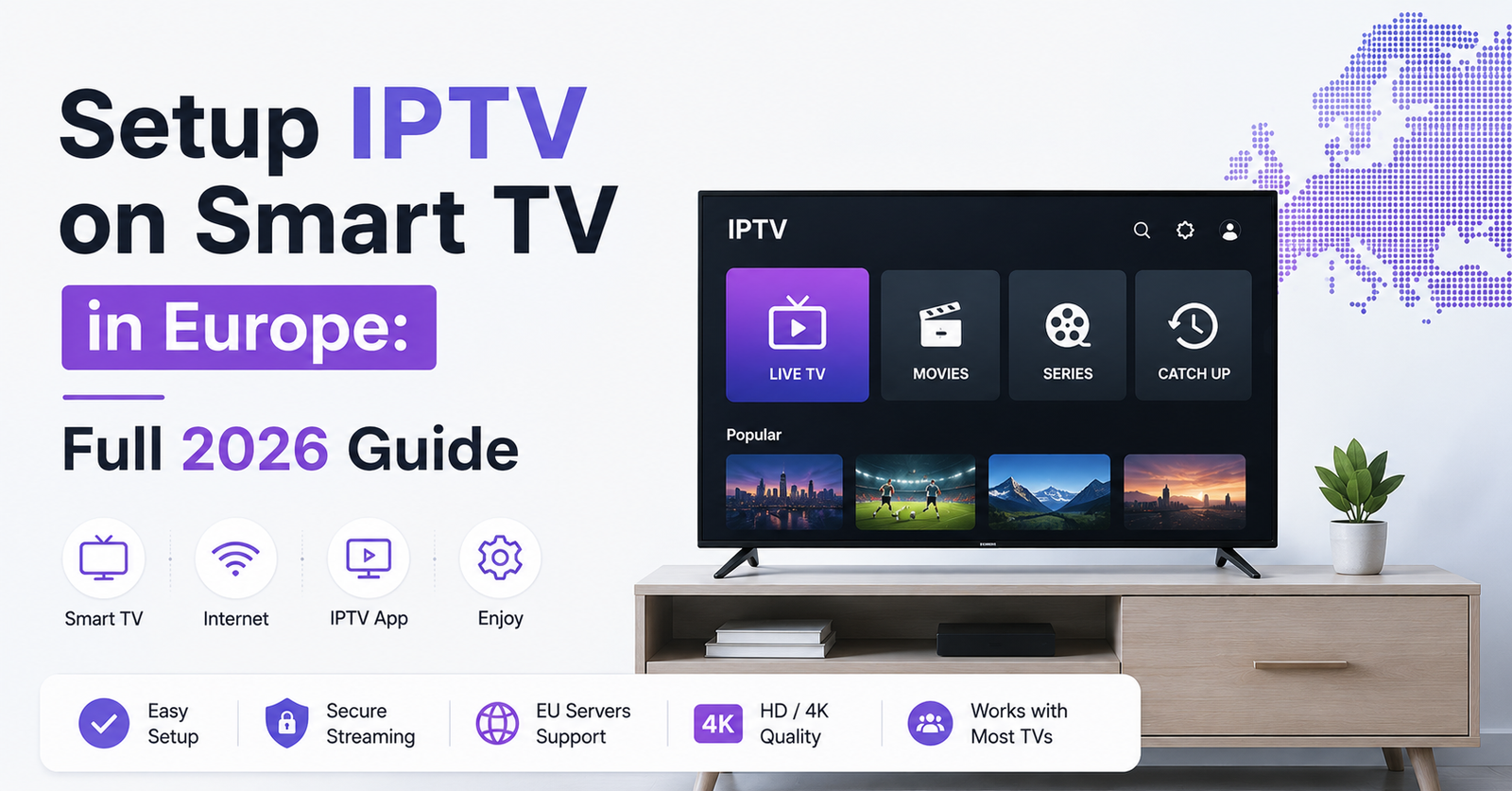
To setup IPTV on Smart TV in Europe, you need three things: a compatible IPTV app on your television, a working M3U playlist link or Xtream Codes login from your provider, and a stable internet connection of at least 25 Mbps. Samsung and LG televisions do not come with IPTV built in, so you install a player app from the TV’s own app store, or through a browser method if the app is not listed, then enter the details your provider sent you. Most people are watching within fifteen minutes of starting.
[ez-toc]
Why Smart TVs Need an Extra App
A Smart TV is not designed to know what IPTV is. It runs its own operating system, Tizen on Samsung sets and webOS on LG sets, and neither one includes a built-in way to read an IPTV playlist. That is why the whole process depends on installing a separate player app first. The app is just the interface. It has no channels of its own until you connect it to a provider.
This distinction matters because a lot of confusion online comes from people mixing up the app and the subscription. An IPTV app such as Smart IPTV, SS IPTV, or IPTV Smarters Pro is free or low cost and does nothing on its own. The actual live TV, sport and film content comes from whichever IPTV subscription UK or European viewers have purchased separately, such as through Cine EU’s subscription plans.
Setup IPTV on Smart TV in Europe: Step by Step
Here is the process most Samsung and LG owners will follow.
- Check your TV model and year. Samsung sets from around 2016 onward run Tizen, and LG sets from a similar period run webOS. Older sets may have limited app store access.
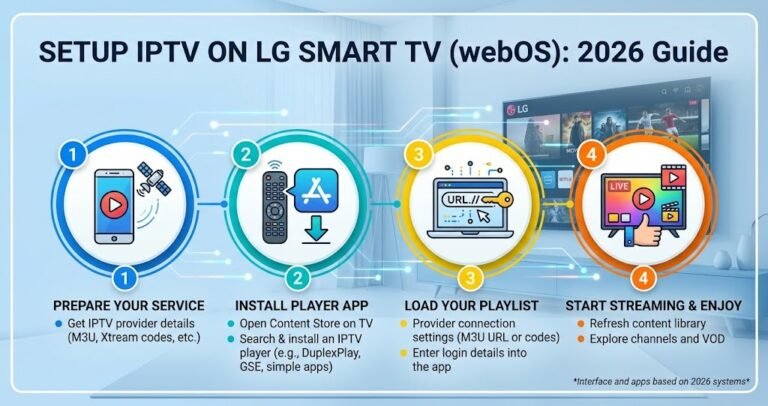
- Open your TV’s app store. On Samsung this is the Samsung Apps or Smart Hub store. On LG it is the LG Content Store.
- Search for an IPTV player. Smart IPTV and IPTV Smarters Pro are common choices on Samsung. SS IPTV and IPTV Smarters Pro are common on LG.
- Install the app and note the MAC address or device code, if the app asks for one, since some apps use this to link your playlist on their website rather than typing it directly into the TV.
- Enter your playlist details. This is either a single M3U URL, or a server address plus a username and password if your provider uses Xtream Codes.
- Wait for the channel list and EPG to load. This can take anywhere from a few seconds to fifteen minutes depending on the app and how many channels are in the list.
- Test a few channels across categories such as news, sport and general entertainment to confirm playback is stable before relying on it daily.
Pro tip: Write down your login details somewhere other than a screenshot on the TV itself. If the app crashes or the TV resets, you will need to re-enter them from scratch.
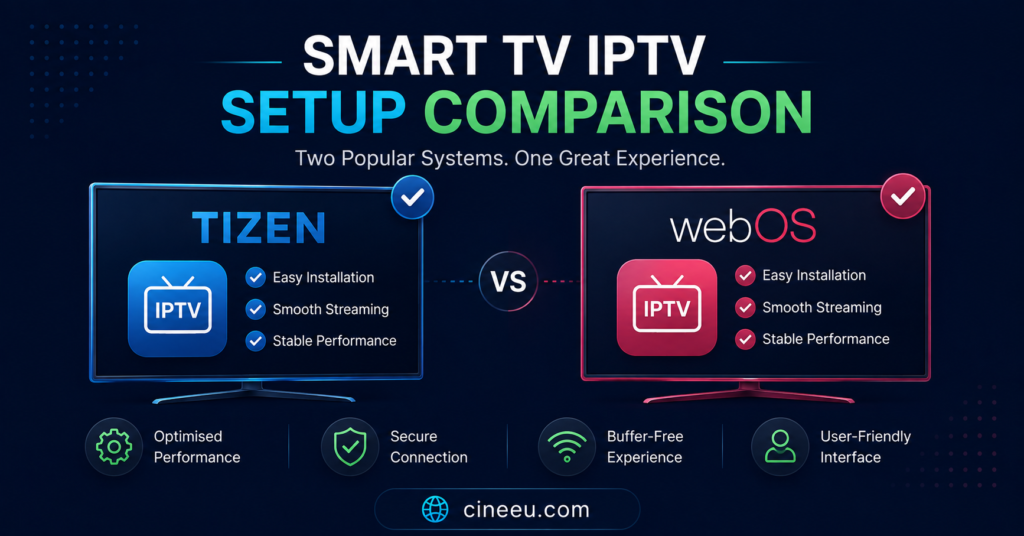
Samsung Tizen vs LG webOS: What’s Different
The two platforms behave differently enough that it is worth knowing before you start.
Samsung’s Tizen store has historically limited which IPTV apps it lists directly, so some well known players such as IPTV Smarters Pro must be installed by other means on certain firmware versions, including linking through a companion website. LG’s webOS store tends to carry a wider range of dedicated IPTV apps natively, which is one reason SS IPTV and similar players are more commonly recommended for LG sets.
Neither platform is better overall. Samsung remotes and menus are generally considered slightly more intuitive for channel browsing, while LG’s Magic Remote pointer can make navigating long channel lists faster once you get used to it. If your TV runs neither Tizen nor webOS, for example a Sony, Hisense or Philips set on Android TV, the setup is usually more flexible because Android TV supports a wider range of apps including TiviMate.
Choosing Between M3U and Xtream Codes Login
Providers give access in one of two main formats, and the table below lays out the practical difference.
The table above compares the two on the points that actually affect day to day use: how you log in, whether the electronic programme guide loads automatically, and how much re-entering you will need to do if your provider updates their server. Xtream Codes logins tend to be less fiddly for most subscribers, mainly because the EPG usually populates without extra steps, but plenty of good providers still issue a plain M3U link and it works perfectly well once it is entered correctly.
Pro tip: If your app supports both methods, and your provider gives you the option, Xtream Codes login is generally the less error-prone choice for a Smart TV, since there is less risk of a mistyped URL.
Common Setup Problems and How to Fix Them
Most Smart TV IPTV issues fall into a handful of categories.
If the app is not listed in your TV’s store, first confirm your TV’s region setting matches a country where the app is officially available, since some apps restrict listing by store region. If it still does not appear, check whether the app supports a manual installation method through its own website.
If the playlist URL is rejected, check it begins with http:// or https:// with no extra spaces, and confirm your provider has not changed servers recently. A URL that worked last month can stop working if the provider migrates infrastructure.
If channels load but the picture buffers constantly, this is more often a network issue than an app issue. A wired Ethernet connection to your router, or at minimum a strong 5GHz WiFi signal, resolves the majority of buffering complaints on Smart TVs, since these devices are often placed further from the router than a phone or laptop.
If the EPG shows no programme information, give it time. Many apps pull EPG data on a schedule rather than instantly, and it can take up to a few hours to populate fully after the first login.
Pro tip: Restarting the app, not just the TV, clears a surprising number of playback glitches. A full TV restart is only needed if restarting the app alone does not help.
Subscriber Considerations: What to Check Before You Pay
Before choosing a provider for Smart TV use across Europe, a few practical checks are worth doing.
Confirm which devices are actually supported. A provider that lists Firestick and Android but says nothing about Samsung or LG Smart TV compatibility may still work through a browser or third party app, but you should ask directly rather than assume.
Check how pricing works in your currency. Since you are in the European market, paying in euro through SEPA transfer avoids currency conversion fees that can appear with card payments in other currencies.
Ask what happens if a channel stops working. A provider with clear, fast WhatsApp or ticket support is more useful in practice than one that only advertises a large channel count. You can read more about how the setup and support process works before committing to a plan.
Reseller Considerations: Supporting Customers Across Europe
If you are a reseller helping customers get IPTV set up on their Smart TVs, the operational side matters as much as the technical steps.
Keep a simple reference sheet of which app you recommend for which TV brand, since customers will ask and inconsistent answers cost you time. Document the exact steps for Samsung and LG separately, because customers rarely know which platform they own beyond the brand name.
Set expectations early about EPG loading time and buffering causes, so customers do not assume a delay is a fault with their account. A short written guide you can send by WhatsApp after activation reduces repeat support messages significantly. Reviewing your provider’s reseller panel details before onboarding customers helps you answer device questions with confidence rather than guessing.
Frequently Asked Questions
Do I need a special remote to set up IPTV on my Smart TV?
No. The standard remote that came with your Samsung or LG TV is enough to install an app and enter your login details using the on-screen keyboard.
Can I use the same IPTV login on more than one Smart TV?
This depends on your provider’s connection limit. Standard plans often allow one active IPTV stream at a time, so using the same login on two TVs simultaneously may log one of them out. Check with your provider if you need multiple screens.
Why does my IPTV app show channels but no programme guide?
This is usually a delay in EPG data loading rather than a fault. It can take from a few minutes up to several hours depending on the app and provider.
Is a wired connection really necessary for Smart TV IPTV?
Not strictly necessary, but it is the most reliable fix for buffering. WiFi can work fine if your TV has a strong signal and enough bandwidth, particularly for HD rather than 4K streams.
What internet speed do I need to setup IPTV on Smart TV in Europe reliably?
Around 25 Mbps is a reasonable minimum for HD streaming, with more headroom recommended if you plan to watch 4K content or have multiple devices online at once.
Can I install any IPTV app on any Samsung or LG TV?
Not always. App availability can vary by TV model, firmware version, and store region, so it is worth checking your specific TV’s app store before assuming an app will appear.
Conclusion
To setup IPTV on Smart TV in Europe, the core process stays the same across brands: install a compatible player app, enter either an M3U link or Xtream Codes login, let the EPG populate, and troubleshoot buffering through your network first rather than the app. Samsung and LG differ slightly in which apps are easiest to install, but neither platform makes the process especially complicated once you know the order of steps. If something still will not connect after checking the basics, your provider’s support channel is the fastest way to confirm whether the issue is on your end or theirs.
Setup Checklist
- Confirm your TV brand and whether it runs Tizen, webOS, or Android TV
- Install a player app from your TV’s own app store, or via manual installation if unavailable
- Have your M3U link or Xtream Codes login ready before you start
- Enter details carefully, checking for spaces or missing http/https
- Allow time for the EPG to load before assuming it has failed
- Test channels across categories, not just one, before relying on the setup daily
- Use a wired connection or strong WiFi if buffering appears
- Save your login details somewhere outside the TV itself
Newsletter Updates
Enter your email address below and subscribe to our newsletter