Book Appointment Now
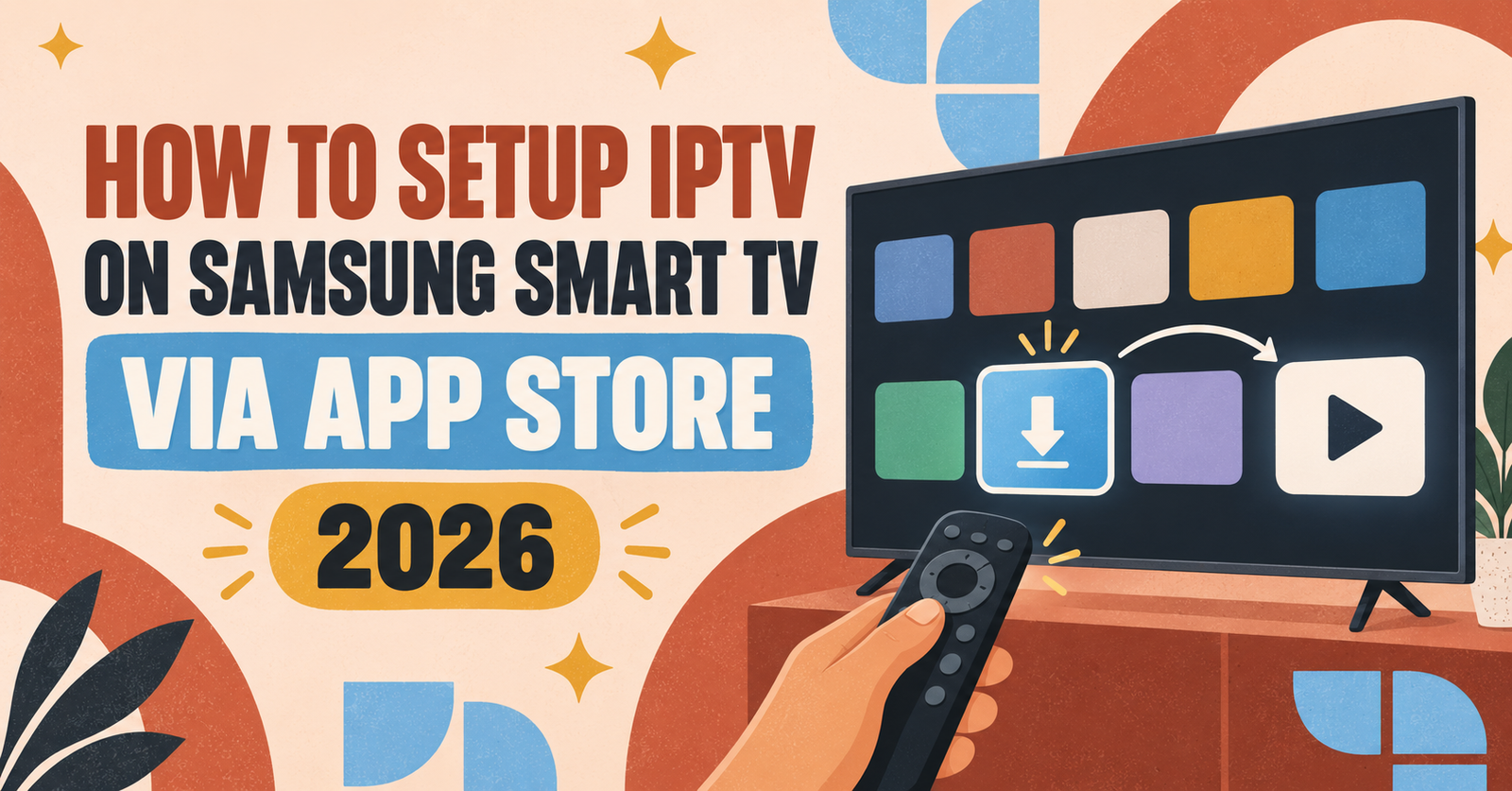
How to Setup IPTV on Samsung Smart TV via App Store 2026
Setup IPTV on Samsung Smart TV starts with picking the right app for your TV’s Tizen software, not just downloading the first result in the Samsung app store. Most Samsung televisions made from 2016 onwards run Tizen and support native IPTV apps directly from the Smart Hub, so in most cases you won’t need a Firestick or an Android box at all. The process usually takes ten to fifteen minutes once you have your login details ready.
What you need before you touch the remote
Before opening any app, gather three things: your subscription’s server URL, your username and password, or an M3U playlist link if your IPTV reseller panel provider uses that format instead of Xtream Codes. This information normally arrives by email or WhatsApp shortly after you sign up. Trying to set up the app without it is the single most common reason people give up halfway through and assume their TV isn’t compatible.
It also helps to know your TV’s software platform. Go to Settings, then General, then About This TV (the exact wording varies slightly by model year), and look for “Tizen” followed by a version number. Anything from Tizen 5.0 upward handles IPTV apps comfortably. Older Samsung sets running a different, discontinued operating system have far more limited app support, and a streaming stick plugged into an HDMI port is usually the more reliable route for those.
Setup IPTV on Samsung Smart TV using the built-in app store
The most dependable method doesn’t involve sideloading anything. Samsung’s Tizen platform doesn’t accept APK files the way Android TV does, so the apps available inside the Smart Hub are effectively your official options.
Open the Home button on your remote, move along to Apps, and use the on-screen search to look for “Smart IPTV”. It’s the most widely used dedicated player on Tizen, and it’s built specifically for this platform rather than ported over from Android. Highlight it, select Install, and wait for the download to finish, which typically takes under a minute.
Once it opens, Smart IPTV will show you an activation code and an MAC address unique to your TV. Some providers ask for this MAC address so they can generate a playlist tied to your device; others let you skip straight to entering an M3U URL or Xtream Codes details manually inside the app. Follow whichever method your provider’s instructions describe, since the two systems aren’t interchangeable.
If Smart IPTV isn’t showing up in your region, search instead for IPTV Smarters or SS IPTV. Availability shifts depending on your country and the year your TV was manufactured, so it’s worth checking both names rather than assuming your model is unsupported.
Entering your playlist details correctly
Inside the app, look for an option labelled “Add Playlist,” “Xtream Codes API,” or similar wording depending on which app you installed. You’ll be asked for a server URL, a username, and a password if you’re using Xtream Codes, or a single M3U link if your provider works that way instead. Typing long server addresses with a remote is tedious, so pairing a Bluetooth keyboard or using your phone as a remote keyboard through the Samsung SmartThings app saves a genuine amount of frustration.
Once saved, the app should pull down your channel list and, if your provider supplies one, an EPG guide showing what’s currently airing. This can take anywhere from a few seconds to a full minute depending on how large the playlist is.
Checking the setup actually works
Getting channels to appear isn’t the same as confirming everything is working properly, and skipping this step is how small problems turn into “my IPTV doesn’t work” a week later.
Open three or four channels from different parts of the guide, not just the first one on the list. A single working channel proves very little if the underlying playlist has gaps elsewhere. Watch each one for at least thirty seconds and check that the picture holds steady rather than freezing or dropping in and out.
If your provider includes EPG data, confirm the programme information matches what’s actually airing. A guide that’s several hours out of sync usually points to a server-side timezone setting rather than anything wrong with your TV, and it’s worth flagging to your provider rather than trying to fix locally.
| Problem | Likely cause | What to try |
|---|---|---|
| Channels load but freeze constantly | Wi-Fi signal or insufficient speed | Switch to an Ethernet cable |
| App won’t accept the playlist | Wrong URL format or expired credentials | Re-check the email from your provider |
| Picture is fine but no EPG data | Guide URL missing or not entered | Add the XMLTV link separately if your app supports it |
| App isn’t in the Samsung store | Regional restriction | Search alternative app names before assuming incompatibility |
Pro tip: Restart the app itself before restarting the whole TV. A large number of playback issues clear up simply by closing and reopening the IPTV app, which reloads the playlist without wiping any saved settings.
Getting a stable picture once it’s running
Samsung Smart TVs connect over Wi-Fi by default, and that’s fine for browsing or catching up on a single show, but continuous IPTV streaming asks more of your connection than most households realise. An Ethernet cable running from your router directly to the TV removes a large chunk of the buffering that people otherwise blame on their provider.
If running a cable isn’t practical, keep the TV as close to the router as the room allows, and check that nothing else on the network is competing heavily for bandwidth while you’re watching, particularly other devices downloading large files in the background. A wired connection to a decent home broadband line is normally enough for HD channels; 4K content asks for considerably more headroom.
Pro tip: If your Samsung TV has both 2.4GHz and 5GHz Wi-Fi bands available, manually selecting 5GHz in the network settings often resolves intermittent freezing that a full router restart doesn’t fix.
Choosing a provider that plays well with Samsung TVs
Not every IPTV service formats its playlists the same way, and some make the Samsung setup smoother than others by offering clear device-specific instructions rather than a single generic guide for every platform. Before committing to a longer plan, it’s worth reading through general guidance on picking a reliable IPTV provider and comparing how different services structure their subscription pricing, since the cheapest option on paper isn’t always the one that behaves best on Tizen hardware.
A short free trial, where one is offered, is genuinely the fastest way to confirm compatibility before paying for a longer IPTV subscription plan. Ten minutes of testing on your actual TV tells you more than any amount of reading about a provider’s reputation.
For resellers setting up customer TVs
If you’re managing IPTV accounts for other people rather than just your own household, Samsung TVs bring a specific wrinkle: you can’t remotely install apps the way you sometimes can on an Android box you’ve configured yourself beforehand. Customers generally need to install Smart IPTV or an equivalent app themselves, which means clear written instructions matter more here than for almost any other device you’ll support.
Keeping a simple, repeatable instruction sheet for Samsung setups, one that covers the exact menu wording for whichever Tizen versions your customer base tends to have, cuts down considerably on repeat support messages. It’s also worth confirming which playlist format your reseller panel generates by default, since switching a customer from Xtream Codes to M3U midway through a support conversation adds confusion neither of you needs.
Common questions
Does every Samsung Smart TV support IPTV apps?
Most models from 2016 onwards running Tizen OS do. Older Samsung TVs on a different, discontinued platform have much more limited app availability, and a streaming device connected by HDMI is usually the simpler fix in that case.
Why can’t I find Smart IPTV in my app store?
Availability depends partly on your region and your TV’s exact software version. Try searching alternative names such as IPTV Smarters or SS IPTV before concluding your model isn’t supported.
Can I use an M3U link instead of Xtream Codes?
Yes, most Tizen IPTV apps accept both formats. Use whichever your provider actually supplies rather than trying to convert one into the other yourself.
Why does the picture buffer even though my internet seems fast?
Wi-Fi congestion is the most frequent cause on Samsung TVs specifically, since the built-in wireless chip has to share bandwidth with everything else in the house. Ethernet solves this in the large majority of cases.
Do I need to keep the app updated?
Yes. Samsung occasionally pushes Tizen updates that change how apps behave, and an outdated IPTV app is a common, easily missed cause of sudden playback problems.
Setup IPTV on Samsung Smart TV comes down to picking a genuine Tizen-native app, entering your provider’s details accurately, and then actually checking multiple channels before assuming everything is fine. Most of the frustration people run into traces back to two things: using Wi-Fi where Ethernet would have solved the problem instantly, and skipping the verification step entirely. Get those two right, and a Samsung TV is one of the easier devices in the house to run IPTV on, no external box required.
Setup Checklist
- Confirm your TV’s Tizen version before installing anything
- Have your server URL, username and password, or M3U link, ready in advance
- Install Smart IPTV or IPTV Smarters directly from the Samsung app store
- Test at least three channels from different points in the guide
- Check EPG data matches real broadcast times if your IPTV panel provider supplies a guide
- Switch to Ethernet if channels freeze or buffer repeatedly
- Keep the app updated after any Tizen firmware update