Book Appointment Now
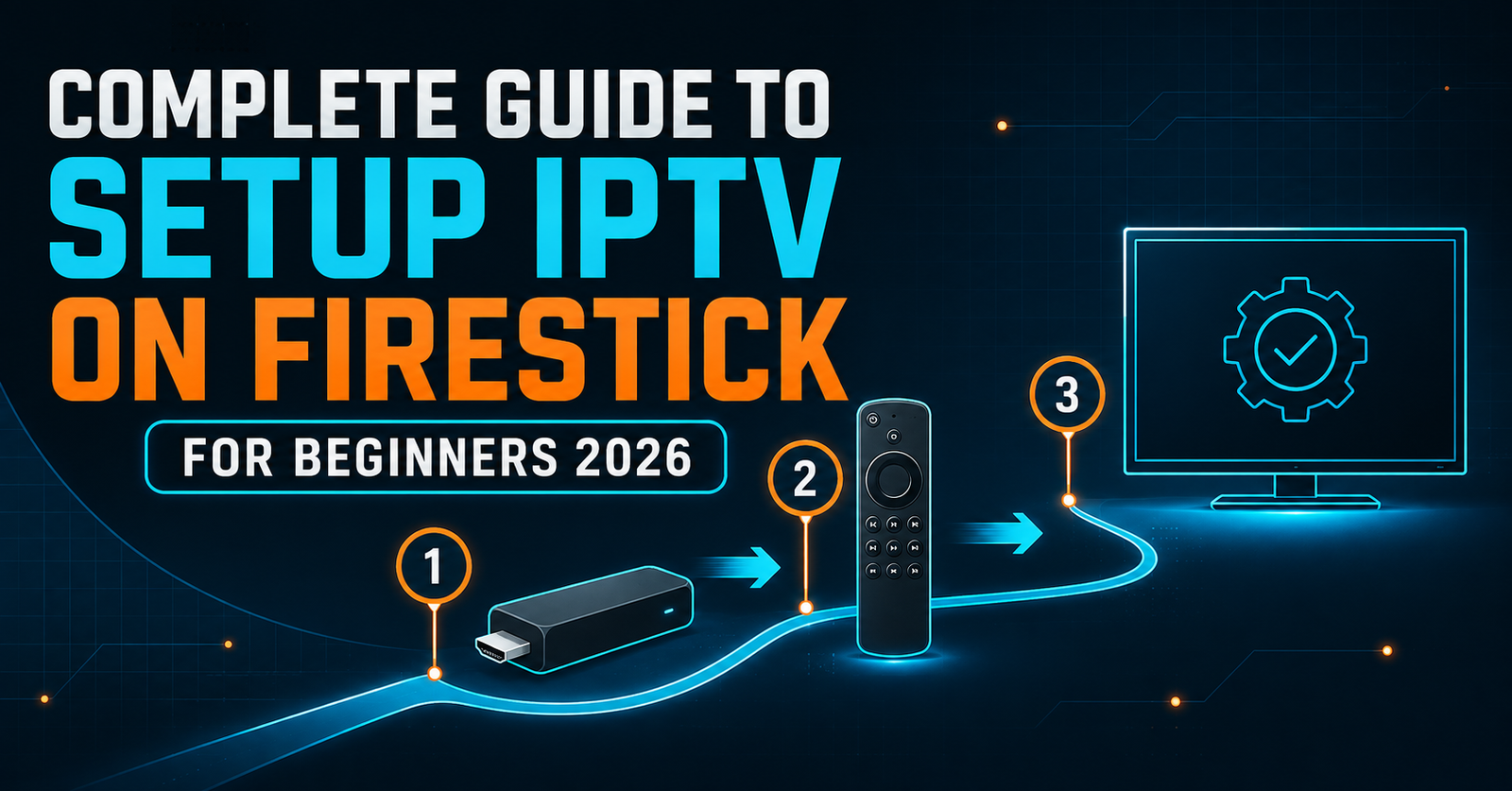
Complete Guide to Setup IPTV on Firestick for Beginners 2026
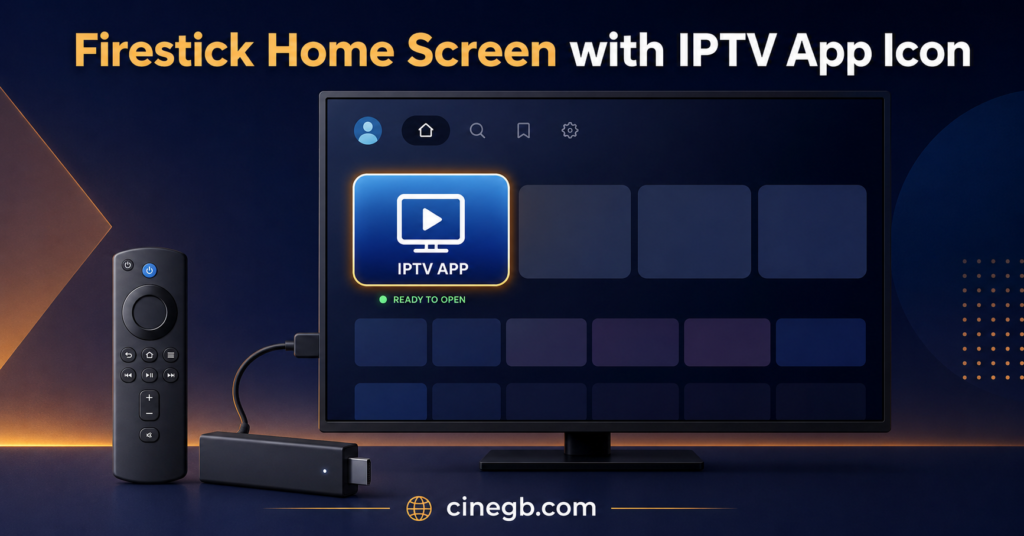
To Setup IPTV on Firestick, you need three things in place: an IPTV player app installed from outside the Amazon store, an active subscription from a provider you trust, and an internet connection that can hold at least 15 Mbps without dropping. Once those three pieces are ready, the actual setup rarely takes longer than ten minutes, from opening the Firestick’s Apps section to your first channel loading on screen. The steps below cover the full process, along with the parts that usually trip people up the first time round.
What You Need Before You Start
A Firestick running a reasonably current version of Fire OS will handle IPTV without issue, though older first and second generation sticks can struggle with higher bitrate 4K streams. Check for a system update first if the device hasn’t been touched in a while, since Amazon regularly patches app store permissions in ways that affect sideloading.
Your internet connection matters more than most people expect. Standard definition channels run comfortably on 10 Mbps, but full HD content wants closer to 15 to 20 Mbps, and anything in 4K will need considerably more headroom plus a wired connection if the Wi-Fi signal to your router is weak. A connection that looks fine on a speed test can still buffer during peak evening hours if your household is sharing bandwidth across several devices.
You’ll also need login credentials from your IPTV reseller panel provider, usually sent as a username, password, and server address, or occasionally as a single M3U playlist link. Have these ready before you start the app install, since switching between screens to find an email can be more fiddly on a remote control than on a phone or laptop.
Setup IPTV on Firestick: Step by Step
The process below assumes you already have working credentials from your provider.
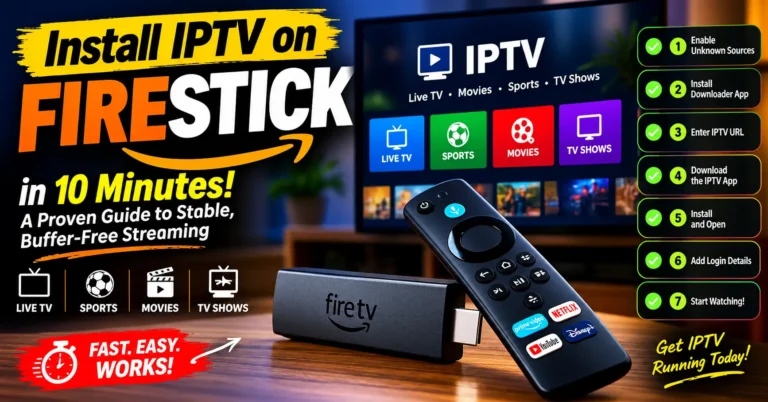
First, enable apps from unknown sources. On the Firestick home screen, go to Settings, then My Fire TV, then Developer Options, and turn on Apps from Unknown Sources. This step is what allows the IPTV app to install outside Amazon’s own app store, and it’s a one-time setting rather than something you’ll need to repeat.
Next, install Downloader from the Amazon app store. Search for it directly in the Firestick’s search bar, since it’s a legitimate app available through Amazon rather than a sideloaded one.
Open Downloader and enter the web address for your chosen IPTV player. Popular players such as IPTV Smarters, TiviMate, or OTT Navigator each have their own APK download link, usually supplied by the app developer or your IPTV provider’s support page. Type the URL carefully, since a single typo will send Downloader to a dead page.
Once the APK downloads, install it when prompted. You may see a warning about the app not being from a trusted source. This is expected behaviour for anything installed outside the Amazon store and doesn’t indicate a problem with the app itself.
Open the newly installed player and enter your provider details. Depending on the app, you’ll either paste in an M3U playlist URL, or enter your username, password, and server address separately through a Xtream Codes login screen. Most apps save these details after the first entry, so you won’t need to type them again unless you change providers.
Give the app a minute or two to load your channel list and video-on-demand library, particularly if your subscription includes a large number of channels. A blank or partially loaded list after several minutes usually points to a credentials issue rather than something wrong with the app.
Testing Your Setup Before You Trust It
Before assuming everything works, test a handful of channels rather than just the first one that loads. Try a live channel, a video-on-demand title, and if your subscription includes it, a catch-up or replay option. Each of these draws on a slightly different part of the provider’s backend, so testing only one gives you an incomplete picture.
Pay attention to how quickly a channel starts and whether it holds steady after the first minute. Occasional short freezes during the opening seconds are normal as the stream buffers, but repeated freezing after that point usually signals a connection or server load issue rather than a one-off glitch.
Pro tip: Restart the Firestick itself, not just the app, if channels load slowly on first setup. A fresh reboot clears background processes that can interfere with a new app’s first run.
Common Firestick IPTV Problems and Fixes
| Problem | Likely reason | Next action |
|---|---|---|
| App won’t install | Unknown Sources setting not enabled | Recheck Developer Options and re-enable it |
| Channels buffer constantly | Internet speed too low or shared across devices | Test speed directly on the Firestick’s network, reduce other usage |
| Login rejected | Incorrect credentials or expired subscription | Confirm details with your provider before retyping |
| Picture freezes after a few minutes | Server-side congestion during peak hours | Try again later, or ask your provider about a backup server |
| App crashes on open | Corrupted APK download | Delete the app and redownload through Downloader |
Getting Better Picture Quality Once It’s Running
A wired Ethernet adaptor for the Firestick makes a bigger difference than most people expect, particularly for 4K content or households where several devices compete for Wi-Fi at once. It’s a small, inexpensive accessory, but it removes one of the most common causes of buffering entirely.
Placing your router closer to the TV, or at least removing thick walls and large appliances between them, also helps more than adjusting any setting inside the app itself. IPTV depends entirely on a steady connection, so most quality problems trace back to the network rather than the streaming app or the IPTV subscription plan itself.
Pro tip: If your player app offers an EPG or electronic programme guide option, load it separately using the URL your provider supplies. A missing guide is one of the more common gaps people notice only after they’ve already set everything else up.
If you haven’t picked a provider yet, it’s worth comparing a few properly before committing to a plan, since what actually makes a good IPTV provider varies more than most comparison pages suggest. Checking how the whole process fits together before you subscribe can also save you from picking a plan that doesn’t match your devices.
Frequently Asked Questions
Do I need a VPN to use IPTV on Firestick?
A VPN isn’t required for the app or player to function, though some households use one for general privacy on their home network. It won’t fix a slow or unstable IPTV stream on its own.
Can I use the same subscription on more than one Firestick?
That depends on your provider’s connection limit. Most plans allow one active stream at a time unless you’ve specifically paid for a multi-connection option, so running the same login on two devices simultaneously will usually disconnect one of them.
Why does the app show channels but nothing plays?
This is almost always either a server-side issue on the provider’s end or a local network problem. Testing a different channel and checking your internet speed will usually tell you which one it is.
Is TiviMate better than IPTV Smarters for a Firestick setup?
Both work well and support the same core Xtream Codes and M3U formats. TiviMate has a more polished interface but currently sits behind a paywall for full features, while IPTV Smarters remains free with a simpler layout.
How often will I need to reinstall the app?
Rarely, unless you switch to a new Firestick or reset the device to factory settings. Provider-side updates typically don’t require reinstalling the player app itself.
Conclusion
Getting this right the first time comes down to preparation more than technical skill. Once you Setup IPTV on Firestick with a working app, correct credentials, and a connection that can actually support streaming, the day to day experience is straightforward. If channels stutter or refuse to load, work through the network and credential checks above before assuming the app itself is faulty, since that’s where most problems actually sit. From there, checking your Firestick app options for updates every so often will keep things running smoothly without much ongoing effort.
Setup Checklist
- Firestick updated to the latest available Fire OS version
- Unknown Sources enabled under Developer Options
- Downloader app installed from the Amazon store
- IPTV player app installed and opened successfully
- IPTV reseller panel Provider login details entered correctly
- At least three different channel types tested
- Wired Ethernet connection used where 4K content is involved
- EPG loaded separately if the player supports it